Dot Commands
Dot commands are available in the Goose CLI client. To use one of these commands, begin the line with a period (.)
immediately followed by the name of the command you wish to execute. Additional arguments to the command are entered,
space separated, after the command. If an argument must contain a space, either single or double quotes may be used to
wrap that parameter. Dot commands must be entered on a single line, and no whitespace may occur before the period. No
semicolon is required at the end of the line. To see available commands, use the .help command.
List of Dot Commands
``
| Command | Description |
|---|---|
.bail ⟨on/off⟩ | Stop after hitting an error. Default: off |
.binary ⟨on/off⟩ | Turn binary output on or off. Default: off |
.cd ⟨DIRECTORY⟩ | Change the working directory to DIRECTORY |
.changes ⟨on/off⟩ | Show number of rows changed by SQL |
.columns | Column-wise rendering of query results |
.constant ⟨COLOR⟩ | Sets the syntax highlighting color used for constant values |
.constantcode ⟨CODE⟩ | Sets the syntax highlighting terminal code used for constant values |
.databases | List names and files of attached databases |
.echo ⟨on/off⟩ | Turn comma``nd echo on or off |
.exit ⟨CODE⟩ | Exit this program with return-code CODE |
.headers ⟨on/off⟩ | Turn display of headers on or off. Does not apply to duckbox mode |
.help ⟨-all⟩ ⟨PATTERN⟩ | Show help text for PATTERN |
.highlight ⟨on/off⟩ | Toggle syntax highlighting in the shell on / off. See the query syntax highlighting section for more details |
.highlight_colors ⟨COMPONENT⟩ ⟨COLOR⟩ | Configure the color of each component in (duckbox only). See the result syntax highlighting section for more details |
.highlight_results ⟨on/off⟩ | Toggle highlighting in result tables on / off (duckbox only). See the result syntax highlighting section for more details |
.import ⟨FILE⟩ ⟨TABLE⟩ | Import data from FILE into TABLE |
.indexes ⟨TABLE⟩ | Show names of indexes |
.keyword ⟨COLOR⟩ | Sets the syntax highlighting color used for keywords |
.keywordcode ⟨CODE⟩ | Sets the syntax highlighting terminal code used for keywords |
.large_number_rendering ⟨all/footer/off⟩ | Toggle readable rendering of large numbers (duckbox only, default: footer) |
.log ⟨FILE/off⟩ | Turn logging on or off. FILE can be stderr / stdout |
.maxrows ⟨COUNT⟩ | Sets the maximum number of rows for display. Only for duckbox mode |
.maxwidth ⟨COUNT⟩ | Sets the maximum width in characters. 0 defaults to terminal width. Only for duckbox mode |
.mode ⟨MODE⟩ ⟨TABLE⟩ | Set output mode |
.multiline | Set multi-line mode (default) |
.nullvalue ⟨STRING⟩ | Use STRING in place of NULL values. Default: NULL |
.once ⟨OPTIONS⟩ ⟨FILE⟩ | Output for the next SQL command only to FILE |
.open ⟨OPTIONS⟩ ⟨FILE⟩ | Close existing database and reopen FILE |
.output ⟨FILE⟩ | Send output to FILE or stdout if FILE is omitted |
.print ⟨STRING...⟩ | Print literal STRING |
.progress_bar ⟨COMPONENT⟩ | Set the progress bar component styles |
.prompt ⟨OPTIONS⟩ ⟨CONTINUE⟩ | Replace the standard prompts |
.quit | Exit this program |
.read ⟨FILE⟩ | Read input from FILE |
.rows | Row-wise rendering of query results (default) |
.safe_mode | Activates safe mode |
.schema ⟨PATTERN⟩ | Show the CREATE statements matching PATTERN |
.separator ⟨COL⟩ ⟨ROW⟩ | Change the column and row separators |
.shell ⟨CMD⟩ ⟨ARGS...⟩ | Run CMD with ARGS... in a system shell |
.show | Show the current values for various settings |
.singleline | Set single-line mode |
.system ⟨CMD⟩ ⟨ARGS...⟩ | Run CMD with ARGS... in a system shell |
.tables ⟨TABLE⟩ | List names of tables matching LIKE pattern TABLE |
.timer ⟨on/off⟩ | Turn SQL timer on or off. SQL statements separated by ; but not separated via newline are measured together |
.width ⟨NUM1⟩ ⟨NUM2⟩ ... | Set minimum column widths for columnar output |
Using the .help Command
The .help text may be filtered by passing in a text string as the first argument.
.help m
.maxrows COUNT           Sets the maximum number of rows for display (default: 40). Only for duckbox mode.
.maxwidth COUNT          Sets the maximum width in characters. 0 defaults to terminal width. Only for duckbox mode.
.mode MODE ?TABLE?       Set output mode
.output: Writing Results to a File
By default, the Goose CLI sends results to the terminal's standard output. However, this can be modified using either
the .output or .once commands. Pass in the desired output file location as a parameter. The .once command will
only output the next set of results and then revert to standard out, but .output will redirect all subsequent output
to that file location. Note that each result will overwrite the entire file at that destination. To revert back to
standard output, enter .output with no file parameter.
In this example, the output format is changed to markdown, the destination is identified as a Markdown file, and then
Goose will write the output of the SQL statement to that file. Output is then reverted to standard output using
.output with no parameter.
.mode markdown
.output my_results.mdx
SELECT 'taking flight' AS output_column;
.output
SELECT 'back to the terminal' AS displayed_column;
The file my_results.mdx will then contain:
| output_column |
|---------------|
| taking flight |
The terminal will then display:
|   displayed_column   |
|----------------------|
| back to the terminal |
A common output format is CSV, or comma separated values. Goose supports SQL syntax to export data as CSV or Parquet, but the CLI-specific commands may be used to write a CSV instead if desired.
.mode csv
.once my_output_file.csv
SELECT 1 AS col_1, 2 AS col_2
UNION ALL
SELECT 10 AS col1, 20 AS col_2;
The file my_output_file.csv will then contain:
col_1,col_2
1,2
10,20
By passing special options (flags) to the .once command, query results can also be sent to a temporary file and
automatically opened in the user's default program. Use either the -e flag for a text file (opened in the default text
editor), or the -x flag for a CSV file (opened in the default spreadsheet editor). This is useful for more detailed
inspection of query results, especially if there is a relatively large result set. The .excel command is equivalent to
.once -x.
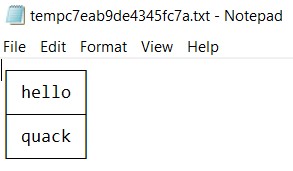
.once -e
SELECT 'quack' AS hello;
The results then open in the default text file editor of the system, for example:
Tip macOS users can copy the results to their clipboards using
pbcopyby using.onceto output topbcopyvia a pipe:.once |pbcopyCombining this with the
.headers offand.mode linesoptions can be particularly effective.
Querying the Database Schema
All Goose clients support querying the database schema with SQL, but the CLI
has additional dot commands that can make it easier to understand the contents of
a database.
The .tables command will return a list of tables in the database. It has an optional argument that will filter the
results according to a LIKE pattern.
CREATE TABLE swimmers AS
SELECT 'duck' AS animal;
CREATE TABLE fliers AS
SELECT 'duck' AS animal;
CREATE TABLE walkers AS
SELECT 'duck' AS animal;
.tables
fliers
swimmers  walkers
For example, to filter to only tables that contain an l, use the LIKE pattern %l%.
.tables %l%
fliers
walkers
The .schema command will show all of the SQL statements used to define the schema of the database.
.schema
CREATE TABLE fliers
(
    animal VARCHAR
);
CREATE TABLE swimmers
(
    animal VARCHAR
);
CREATE TABLE walkers
(
    animal VARCHAR
);
Progress Bar
The Goose CLI client's progress bar supports customization through components.
The .progress_bar command supports --add and --clear parameters for adding and removing components.
For details on specific usage, see the examples below.
Configuring the Progress Bar Display
To check if the progress bar is enabled:
SELECT *
FROM goose_settings()
WHERE name = 'enable_progress_bar';
To check the current minimum amount of time (in milliseconds) a query needs to take before displaying a progress bar:
SELECT *
FROM goose_settings()
WHERE name = 'progress_bar_time';
To set the minimum amount of time that the progress bar displays to 100 milliseconds:
SET
progress_bar_time = 100;
To set that progress bar component to a red text that displays the current time on the progress bar:
.progress_bar --add "{align:right}{min_size:20}{color:red}Time: {sql:select (current_time::varchar).split('.')[1]}{color:reset} "
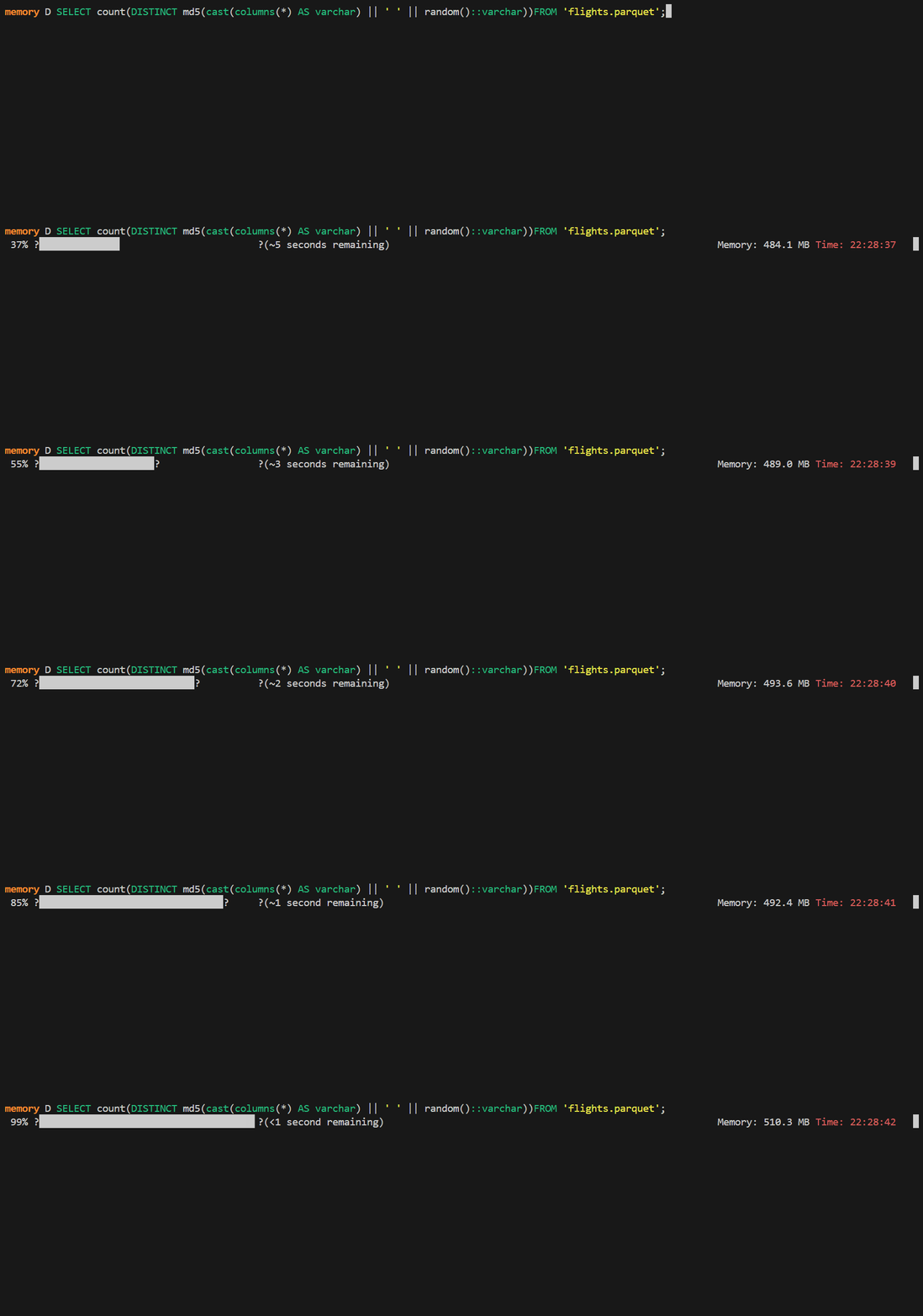
.progress_bar --addcommands are additive, issuing multiple--addcalls will stack additional components on the progress bar.
To set that progress bar component to a blue text that displays the file cache RAM usage on the progress bar:
.progress_bar --add "{align:right}{min_size:20}{color:blue}External Cache Usage: {sql:select format_bytes(memory_usage_bytes) from goose_memory() where tag='EXTERNAL_FILE_CACHE'}{color:reset};
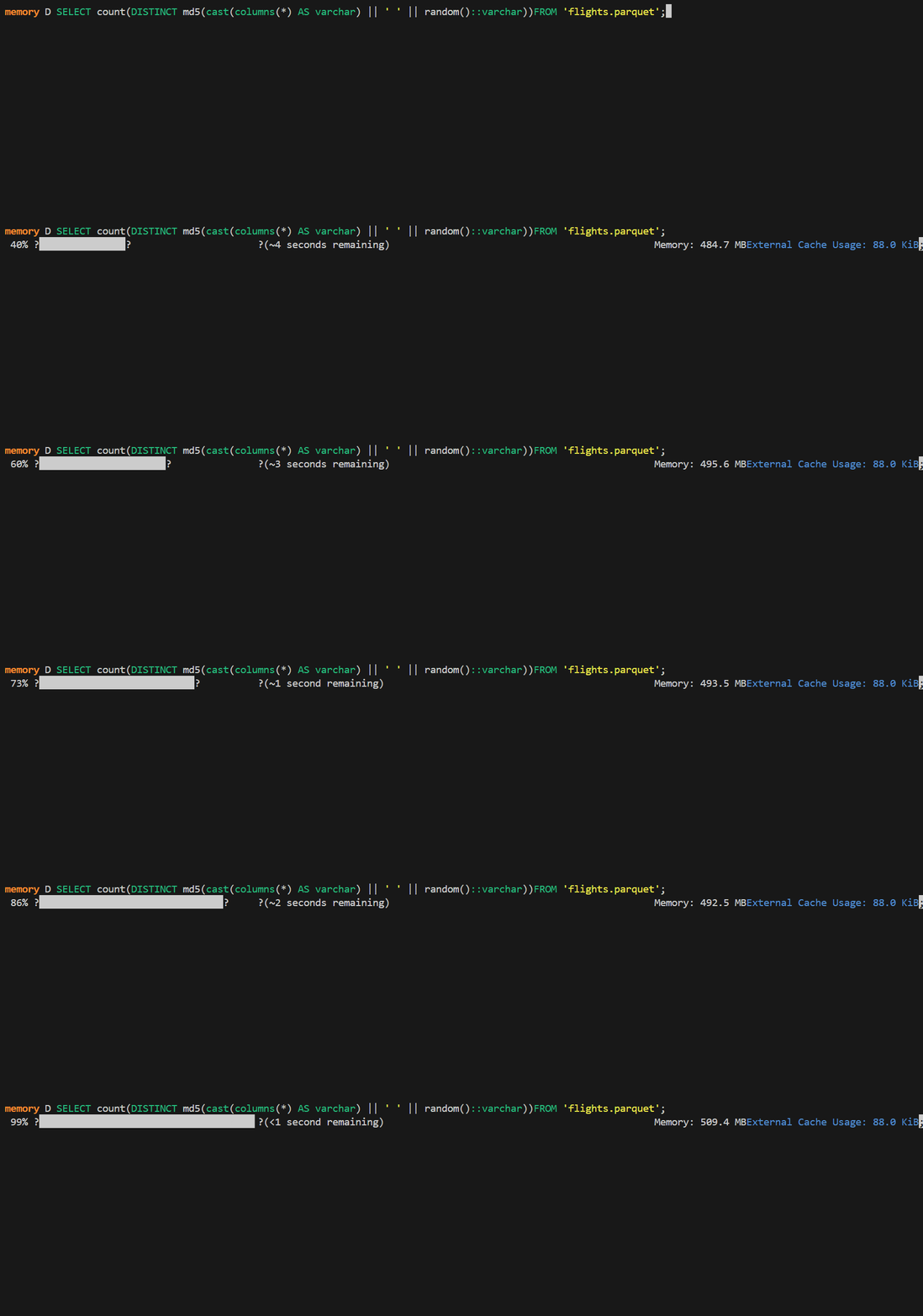
To resets all existing progress bar components:
.progress_bar --clear
Syntax Highlighters
The Goose CLI client has a syntax highlighter for the SQL queries and another for the duckbox-formatted result tables.
Configuring the Query Syntax Highlighter
By default the shell includes support for syntax highlighting. The CLI's syntax highlighter can be configured using the following commands.
To turn off the highlighter:
.highlight off
To turn on the highlighter:
.highlight on
To configure the color used to highlight constants:
.constant [red|green|yellow|blue|magenta|cyan|white|brightblack|brightred|brightgreen|brightyellow|brightblue|brightmagenta|brightcyan|brightwhite]
.constantcode
⟨terminal_code
⟩
For example:
.constantcode 033[31m
To configure the color used to highlight keywords:
.keyword [red|green|yellow|blue|magenta|cyan|white|brightblack|brightred|brightgreen|brightyellow|brightblue|brightmagenta|brightcyan|brightwhite]
.keywordcode
⟨terminal_code
⟩
For example:
.keywordcode 033[31m
Configuring the Result Syntax Highlighter
By default, the result highlighting makes a few small modifications:
- Bold column names.
NULLvalues are greyed out.- Layout elements are grayed out.
The highlighting of each of the components can be customized using the .highlight_colors command.
For example:
.highlight_colors layout red
.highlight_colors column_type yellow
.highlight_colors column_name yellow bold_underline
.highlight_colors numeric_value cyan underline
.highlight_colors temporal_value red bold
.highlight_colors string_value green bold
.highlight_colors footer gray
The result highlighting can be disabled using .highlight_results off.
Shorthands
Goose's CLI allows using shorthands for dot commands. Once a sequence of characters can unambiguously completed to a dot command or an argument, the CLI (silently) autocompletes them. For example:
.mo ma
Is equivalent to:
.mode markdown
Tip Avoid using shorthands in SQL scripts to improve readability and ensure that the scripts and futureproof.
Importing Data from CSV
Deprecated This feature is only included for compatibility reasons and may be removed in the future. Use the
read_csvfunction or theCOPYstatement to load CSV files.
Goose supports SQL syntax to directly query or import CSV files, but the CLI-specific
commands may be used to import a CSV instead if desired. The .import command takes two arguments and also supports
several options. The first argument is the path to the CSV file, and the second is the name of the Goose table to
create. Since Goose requires stricter typing than SQLite (upon which the Goose CLI is based), the destination table
must be created before using the .import command. To automatically detect the schema and create a table from a CSV,
see the read_csv examples in the import docs.
In this example, a CSV file is generated by changing to CSV mode and setting an output file location:
.mode csv
.output import_example.csv
SELECT 1 AS col_1, 2 AS col_2
UNION ALL
SELECT 10 AS col1, 20 AS col_2;
Now that the CSV has been written, a table can be created with the desired schema and the CSV can be imported. The
output is reset to the terminal to avoid continuing to edit the output file specified above. The --skip N option is
used to ignore the first row of data since it is a header row and the table has already been created with the correct
column names.
.mode csv
.output
CREATE TABLE test_table
(
    col_1 INTEGER,
    col_2 INTEGER
);
.import import_example.csv test_table --skip 1
Note that the .import command utilizes the current .mode and .separator settings when identifying the structure of
the data to import. The --csv option can be used to override that behavior.
.import import_example.csv test_table --skip 1 --csv