Tutorial: Install a dependency from a manifest file
kmpkg has two operation modes: classic mode and manifest mode. This article describes how to install packages using manifest mode, which is the recommended workflow for most users.
In manifest mode, you declare your project's direct dependencies in a manifest file named
kmpkg.json.
Manifest files have their own kmpkg_installed directory where they install dependencies,
unlike classic mode, where all packages are installed in a common %KMPKG_ROOT%/installed
directory. Therefore, each project can have its own manifest and its own set of dependencies that do not conflict with other projects' dependencies.
Manifest mode is also required to use advanced features like versioning and custom registries.
In this tutorial, you will learn how to:
Prerequisites
- kmpkg
- A terminal
- A code editor
- A C++ compiler
- (Optional) CMake or MSBuild
Create a C++ project
In a new folder, create a source file named main.cxx with these contents:
main.cxx
#include <cxxopts.hpp>
#include <fmt/format.h>
#include <range/v3/view.hpp>

namespace view = ranges::views;

int fib(int x)
{
  int a = 0, b = 1;

  for (int it : view::repeat(0) | view::take(x))
  {
    (void)it;
    int tmp = a;
    a += b;
    b = tmp;
  }

  return a;
}

int main(int argc, char **argv)
{
  cxxopts::Options options("fibo", "Print the fibonacci sequence up to a value 'n'");
  options.add_options()("n,value", "The value to print to", cxxopts::value<int>()->default_value("10"));

  auto result = options.parse(argc, argv);
  auto n = result["value"].as<int>();

  for (int x : view::iota(1) | view::take(n))
  {
    fmt::print("fib({}) = {}\n", x, fib(x));
  }
}
The example code references the open-source libraries: cxxopts, fmt, and
range-v3; which are all available in the kmpkg public registry at
https://github.com/kumose/kmpkg.
Create a kmpkg manifest (kmpkg.json)
To declare these dependencies, create a file named kmpkg.json in the same
directory as your project.
kmpkg.json
{
  "dependencies": [
    "cxxopts",
    "fmt",
    "range-v3"
  ]
}
You only need to specify the project's direct dependencies in the
"dependencies" list, kmpkg resolves and installs any required transitive
dependencies.
Integrate kmpkg with your build system
In this step we show you how to integrate kmpkg with CMake or MSBuild, so that your project dependencies get automatically installed or restored whenever you build the project.
If you're using a different build system, skip to the next step: Install dependencies with kmpkg.
MSBuild
To use kmpkg in your MSBuild projects, run the following command:
kmpkg integrate install
You only need to run the kmpkg integrate install
command the first time you want to enable MSBuild integration. This enables MSBuild integration for all
your existing and future projects. Use kmpkg integrate remove
to remove MSBuild system-wide integration.
This integration method automatically adds kmpkg-installed packages to the following project properties:
Include Directories, Link Directories, and Link Libraries. Additionally, this creates a post-build action
that ensures that any required DLLs are copied into the build output folder. This works for all solutions and
projects using Visual Studio 2015 or newer.
To use kmpkg in your CMake projects, you need to set the
CMAKE_TOOLCHAIN_FILE variable to use kmpkg's CMake toolchain file. The kmpkg toolchain is in
%KMPKG_ROOT%/scripts/buildsystems/kmpkg.cmake, where %KMPKG_ROOT% is your kmpkg installation path.
Use any of these methods to set the toolchain file:
- Set the
CMAKE_TOOLCHAIN_FILEin your CMakePresets.json file. - Pass
-DCMAKE_TOOLCHAIN_FILE=<path/to/kmpkg>/scripts/buildsystems/kmpkg.cmakeas a parameter in your CMake configure call. - Set the
CMAKE_TOOLCHAIN_FILECMake variable before the first call toproject()in yourCMakeLists.txtfile.
Install dependencies with kmpkg
If you're using CMake or MSBuild and followed the previous step, you can skip ahead to the next step: Build the project.
If you're using a different build system or want to install the dependencies manually, all you need to do
is run kmpkg install in the directory containing your manifest file.
PS D:\projects\manifest-example> kmpkg install
Detecting compiler hash for triplet x64-windows...
The following packages will be built and installed:
    cxxopts:x64-windows -> 3.1.1
    fmt:x64-windows -> 10.0.0
    range-v3:x64-windows -> 0.12.0#1
  * kmpkg-cmake:x64-windows -> 2023-05-04
  * kmpkg-cmake-config:x64-windows -> 2022-02-06#1
Additional packages (*) will be modified to complete this operation.
Installing 1/5 kmpkg-cmake-config:x64-windows...
Installing 2/5 kmpkg-cmake:x64-windows...
Installing 3/5 cxxopts:x64-windows...
Installing 4/5 fmt:x64-windows...
Installing 5/5 range-v3:x64-windows...
Total install time: 48 s
cxxopts provides CMake targets:

    # this is heuristically generated, and may not be correct
    find_package(cxxopts CONFIG REQUIRED)
    target_link_libraries(main PRIVATE cxxopts::cxxopts)

The package fmt provides CMake targets:

    find_package(fmt CONFIG REQUIRED)
    target_link_libraries(main PRIVATE fmt::fmt)

    # Or use the header-only version
    find_package(fmt CONFIG REQUIRED)
    target_link_libraries(main PRIVATE fmt::fmt-header-only)

range-v3 provides CMake targets:

    # this is heuristically generated, and may not be correct
    find_package(range-v3 CONFIG REQUIRED)
    target_link_libraries(main PRIVATE range-v3::meta range-v3::concepts range-v3::range-v3)
When the command finishes, all built packages will be present in a kmpkg_installed directory. The specific location of this directory depends on your build system; usually, inside the build system's default output folder, or next to your kmpkg.json file.
Build the project
MSBuild
By default, manifest mode is disabled in MSBuild projects.
To enable manifests in your project, set the KmpkgEnableManifest property in your .vcxproj file:
<PropertyGroup Label="Kmpkg">
  <KmpkgEnableManifest>true</KmpkgEnableManifest>
</PropertyGroup>
Alternatively, you can enable manifest mode in your MSBuild call by passing msbuild /p:KmpkgEnableManifest=true as a parameter.
PS D:\projects\manifest-example> msbuild /p:KmpkgEnableManifest=true
MSBuild version 17.7.0-preview-23319-02+6829506b8 for .NET Framework
Build started 8/11/2023 11:29:50 AM.

Project "D:\projects\manifest-example\manifest-example.sln" on node 1 (default targets).
ValidateSolutionConfiguration:
  Building solution configuration "Debug|x64".
Project "D:\projects\manifest-example\manifest-example.sln" (1) is building "D:\projects\manifest-example\manifest-example.vcxproj" (2) on node 1 (default targets).
PrepareForBuild:
  (omitted)
InitializeBuildStatus:
  (omitted)
ComputeStdModulesCompileInputs:
  (omitted)
SetModuleDependencies:
  Creating directory "x64\Debug\manifest.ceffc6eb_MD.tlog\".
KmpkgTripletSelection:
  Using triplet "x64-windows" from "D:\projects\manifest-example\kmpkg_installed\x64-windows\x64-windows\"
  Using normalized configuration "Debug"
KmpkgInstallManifestDependencies:
  Installing kmpkg dependencies to D:\projects\manifest-example\kmpkg_installed\x64-windows\
  Creating directory "D:\projects\manifest-example\kmpkg_installed\x64-windows\".
  "D:\kmpkg\kmpkg.exe" install  --x-wait-for-lock --triplet "x64-windows" --kmpkg-root "D:\kmpkg\" "--x-manifest-root=D:\projects\manifest-example\" "--x-install-root=D:\projects\manifest-example\kmpkg_installed\x64-windows\"
  "D:\kmpkg\kmpkg.exe" install  --x-wait-for-lock --triplet "x64-windows" --kmpkg-root "D:\kmpkg\" "--x-manifest-root=D:\projects\manifest-example\" "--x-install-root=D:\projects\manifest-example\kmpkg_installed\x64-windows\"
  Detecting compiler hash for triplet x64-windows...
  The following packages will be built and installed:
      cxxopts:x64-windows -> 3.1.1
      fmt:x64-windows -> 10.0.0
      range-v3:x64-windows -> 0.12.0#1
    * kmpkg-cmake:x64-windows -> 2023-05-04
    * kmpkg-cmake-config:x64-windows -> 2022-02-06#1
  (omitted)
ClCompile:
  (omitted)
Link:
  (omitted)
AppLocalFromInstalled:
  pwsh.exe -ExecutionPolicy Bypass -noprofile -File "D:\kmpkg\scripts\buildsystems\msbuild\applocal.ps1" "D:\projects\manif
  est-mode-msbuild\x64\Debug\manifest-example.exe" "D:\projects\manifest-example\kmpkg_installed\x64-windows\x64-windows\debug\bin"
  "x64\Debug\manifest.ceffc6eb.tlog\manifest-example.write.1u.tlog" "x64\Debug\kmpkg.applocal.log"
  D:\projects\manifest-example\x64\Debug\fmtd.dll
FinalizeBuildStatus:
  (omitted)
Done Building Project "D:\projects\manifest-example\manifest-example.vcxproj" (default targets).

Done Building Project "D:\projects\manifest-example\manifest-example.sln" (default targets).

Build succeeded.
Visual Studio
By default, manifest mode is disabled in Visual Studio projects. To enable manifests, right-click your project in Solution Explorer, select Properties, select the kmpkg tab on the left, and set Use Kmpkg Manifest to Yes.
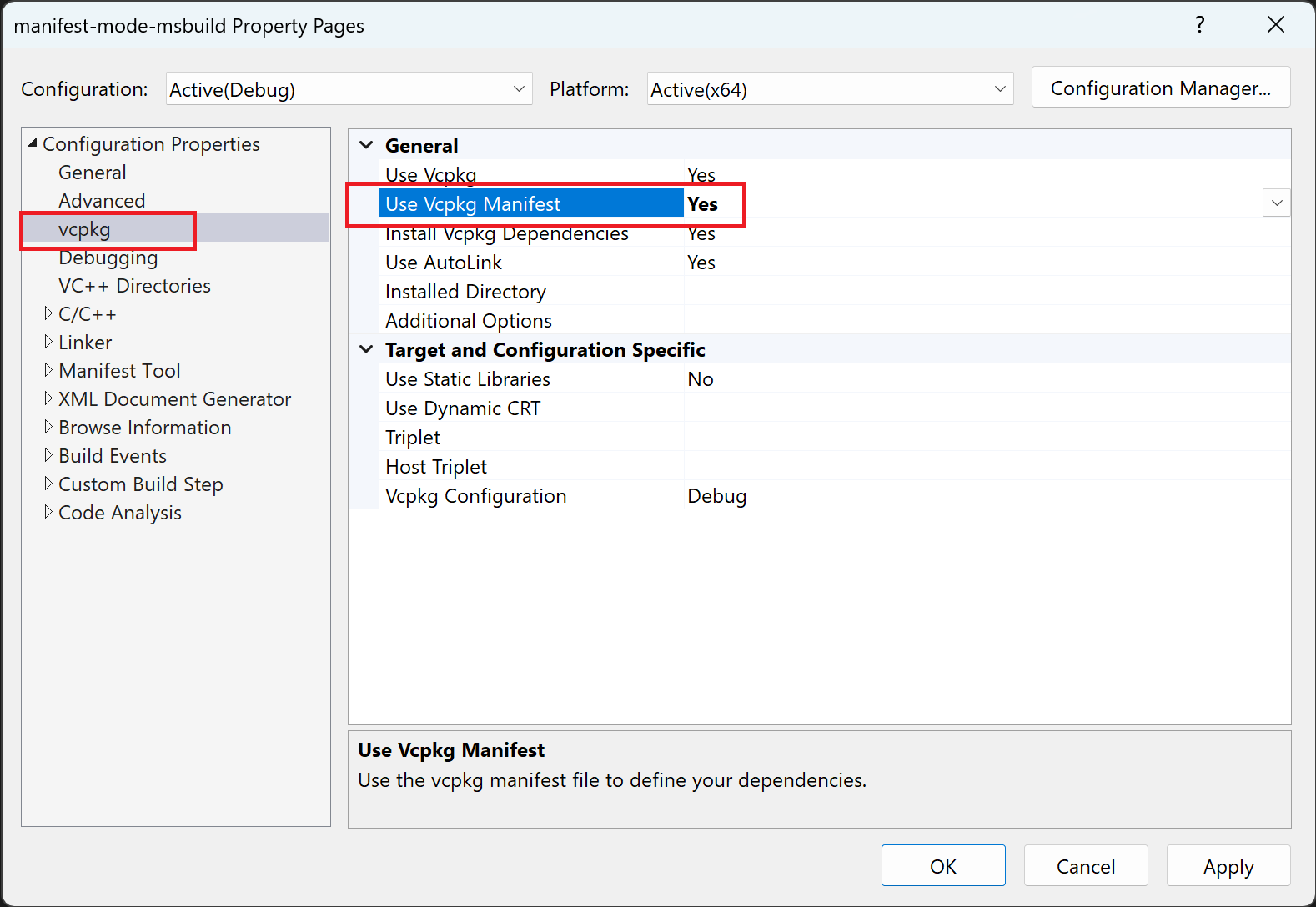
Build the project by right-clicking it in Solution Explorer and selecting Build.
Build started...
1>------ Build started: Project: manifest-example, Configuration: Debug x64 ------
1>Installing kmpkg dependencies to D:\projects\manifest-example\kmpkg_installed\x64-windows\
1>"D:\kmpkg\kmpkg.exe" install  --x-wait-for-lock --triplet "x64-windows" --kmpkg-root "D:\kmpkg\" "--x-manifest-root=D:\projects\manifest-example\" "--x-install-root=D:\projects\manifest-example\kmpkg_installed\x64-windows\"
1>Detecting compiler hash for triplet x64-windows...
1>The following packages will be built and installed:
1>    cxxopts:x64-windows -> 3.1.1
1>    fmt:x64-windows -> 10.0.0
1>    range-v3:x64-windows -> 0.12.0#1
1>  * kmpkg-cmake:x64-windows -> 2023-05-04
1>  * kmpkg-cmake-config:x64-windows -> 2022-02-06#1
1> (omitted)
1>main.cxx
1>manifest-example.vcxproj -> D:\projects\manifest-example\x64\Debug\manifest-example.exe
1>Done building project "manifest-example.vcxproj".
========== Build: 1 succeeded, 0 failed, 0 up-to-date, 0 skipped ==========
========== Build started at 12:07 PM and took 15.320 seconds ==========
CMake
1 - Create a CMakeLists.txt file
Add the following CMakeLists.txt file in the project folder:
CMakeLists.txt:
cmake_minimum_required(VERSION 3.15)

project(fibonacci CXX)

find_package(fmt CONFIG REQUIRED)
find_package(range-v3 CONFIG REQUIRED)
find_package(cxxopts CONFIG REQUIRED)

set(CMAKE_CXX_STANDARD 17)

add_executable(fibo main.cxx)

target_link_libraries(fibo
  PRIVATE
    fmt::fmt
    range-v3::range-v3
    cxxopts::cxxopts)
2 - Configure your CMake project
Run the following command: cmake -B build -S . -DCMAKE_TOOLCHAIN_FILE=%KMPKG_ROOT%\scripts\buildsystems\kmpkg.cmake, but
substitute %KMPKG_ROOT% with your kmpkg installation path.
Notice how the project's dependencies are automatically installed while configuring the project.
PS D:\projects\manifest-example> cmake -B build -S . -DCMAKE_TOOLCHAIN_FILE=D:\kmpkg\scripts\buildsystems\kmpkg.cmake
-- Running kmpkg install
Detecting compiler hash for triplet x64-windows...
The following packages will be built and installed:
    cxxopts:x64-windows -> 3.1.1
    fmt:x64-windows -> 10.0.0
    range-v3:x64-windows -> 0.12.0#1
  * kmpkg-cmake:x64-windows -> 2023-05-04
  * kmpkg-cmake-config:x64-windows -> 2022-02-06#1
<omitted output>
-- Running kmpkg install - done
-- Selecting Windows SDK version 10.0.18362.0 to target Windows 10.0.19041.
-- The CXX compiler identification is MSVC 19.27.29111.0
-- Detecting CXX compiler ABI info
-- Detecting CXX compiler ABI info - done
-- Check for working CXX compiler: C:/Program Files (x86)/Microsoft Visual Studio/2019/Community/VC/Tools/MSVC/14.27.29110/bin/Hostx64/x64/cl.exe - skipped
-- Detecting CXX compile features
-- Detecting CXX compile features - done
-- Configuring done
-- Generating done
-- Build files have been written to: D:/projects/manifest-example/build
3 - Build the CMake project
Run the following command to build the project: cmake --build build:
PS D:\projects\manifest-example> cmake --build build
Microsoft (R) Build Engine version 16.7.0+b89cb5fde for .NET Framework
Copyright (C) Microsoft Corporation. All rights reserved.

  Checking Build System
  Building Custom Rule D:\projects\manifest-example\CMakeLists.txt
  main.cxx
  fibo.vcxproj -> D:\projects\manifest-example\build\Debug\fibo.exe
  Building Custom Rule D:\projects\manifest-example\CMakeLists.txt
Next Steps
In this guide, you installed dependencies for a simple project using a manifest file.
Here are some additional tasks to try next:
- Install packages for custom platforms, compilers, or build architectures using triplets
- Lock down your versions for repeatable builds using versioning
- Reuse binaries across local or continuous integration runs using binary caching
- Manage your private libraries using custom registries