Install and use packages with MSBuild in Visual Studio
This tutorial shows you how to create a C++ "Hello World" program that uses the
fmt library with MSBuild, kmpkg, and Visual Studio. You'll install
dependencies, configure the project, build, and run a simple application.
Prerequisites
- Visual Studio with C++ development workload
- Git
- Windows 7 or newer
1 - Set up kmpkg
-
Clone the repository
The first step is to clone the kmpkg repository from GitHub. The repository contains scripts to acquire the kmpkg executable and a registry of curated open-source libraries maintained by the kmpkg community. To do this, run:
git clone https://github.com/kumose/kmpkg.gitThe kmpkg curated registry is a set of over 2,000 open-source libraries. These libraries have been validated by kmpkg's continuous integration pipelines to work together. While the kmpkg repository does not contain the source code for these libraries, it holds recipes and metadata to build and install them in your system.
-
Run the bootstrap script
Now that you have cloned the kmpkg repository, navigate to the
kmpkgdirectory and execute the bootstrap script:
- cmd
- powershell
- bash
cd kmpkg && bootstrap-kmpkg.bat
cd kmpkg; .\bootstrap-kmpkg.bat
cd kmpkg && ./bootstrap-kmpkg.sh
The bootstrap script performs prerequisite checks and downloads the kmpkg executable.
That's it! kmpkg is set up and ready to use.
-
Integrate with Visual Studio MSBuild
The next step is to enable user-wide kmpkg integration, this makes MSBuild aware of kmpkg's installation path.
Run
.\kmpkg.exe integrate installThis outputs:
All MSBuild C++ projects can now #include any installed libraries. Linking will be handled automatically. Installing new libraries will make them instantly available.
2 - Set up the Visual Studio project
-
Create the Visual Studio project
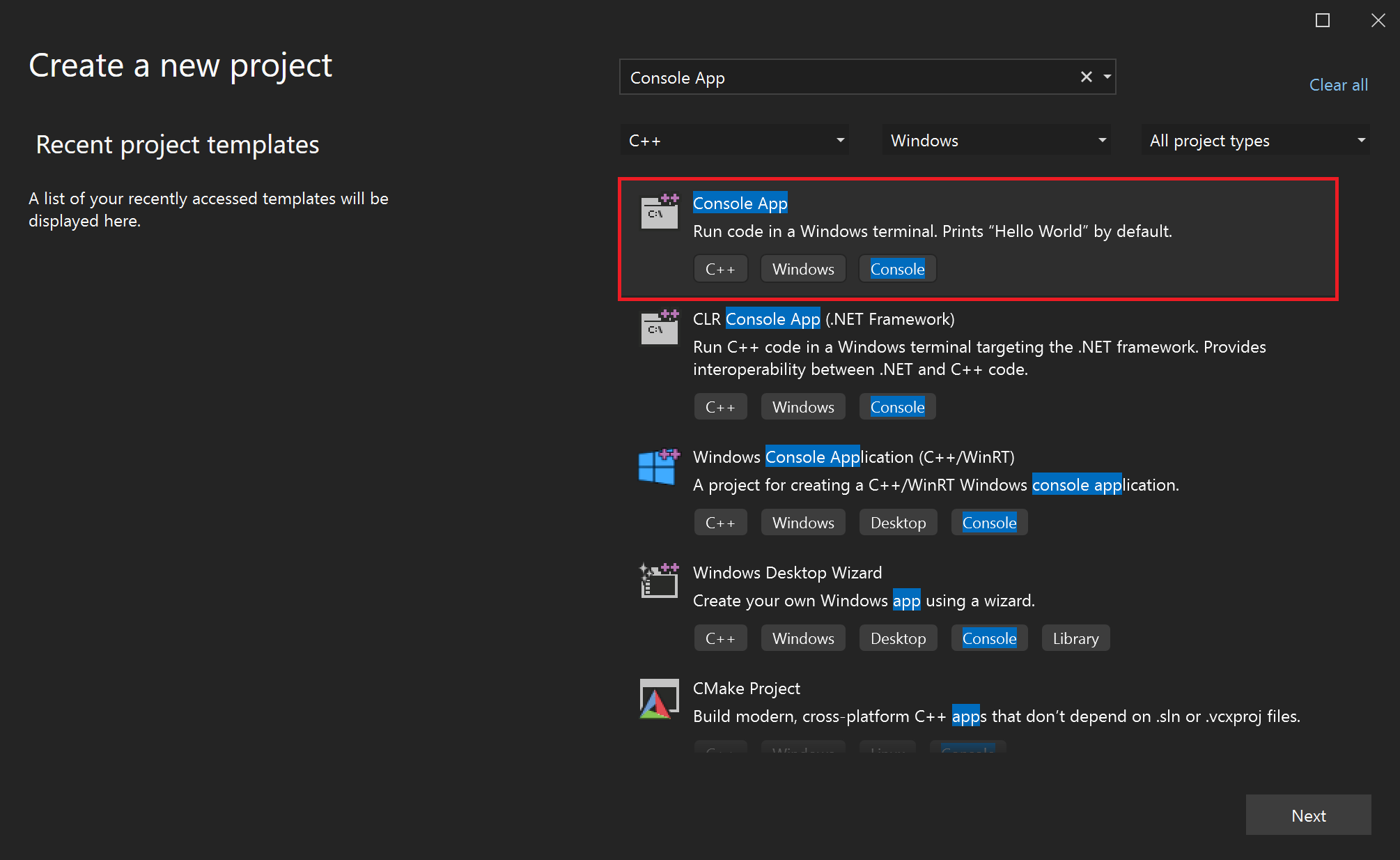
- Create a new project in Visual Studio using the "Console Application" template
-
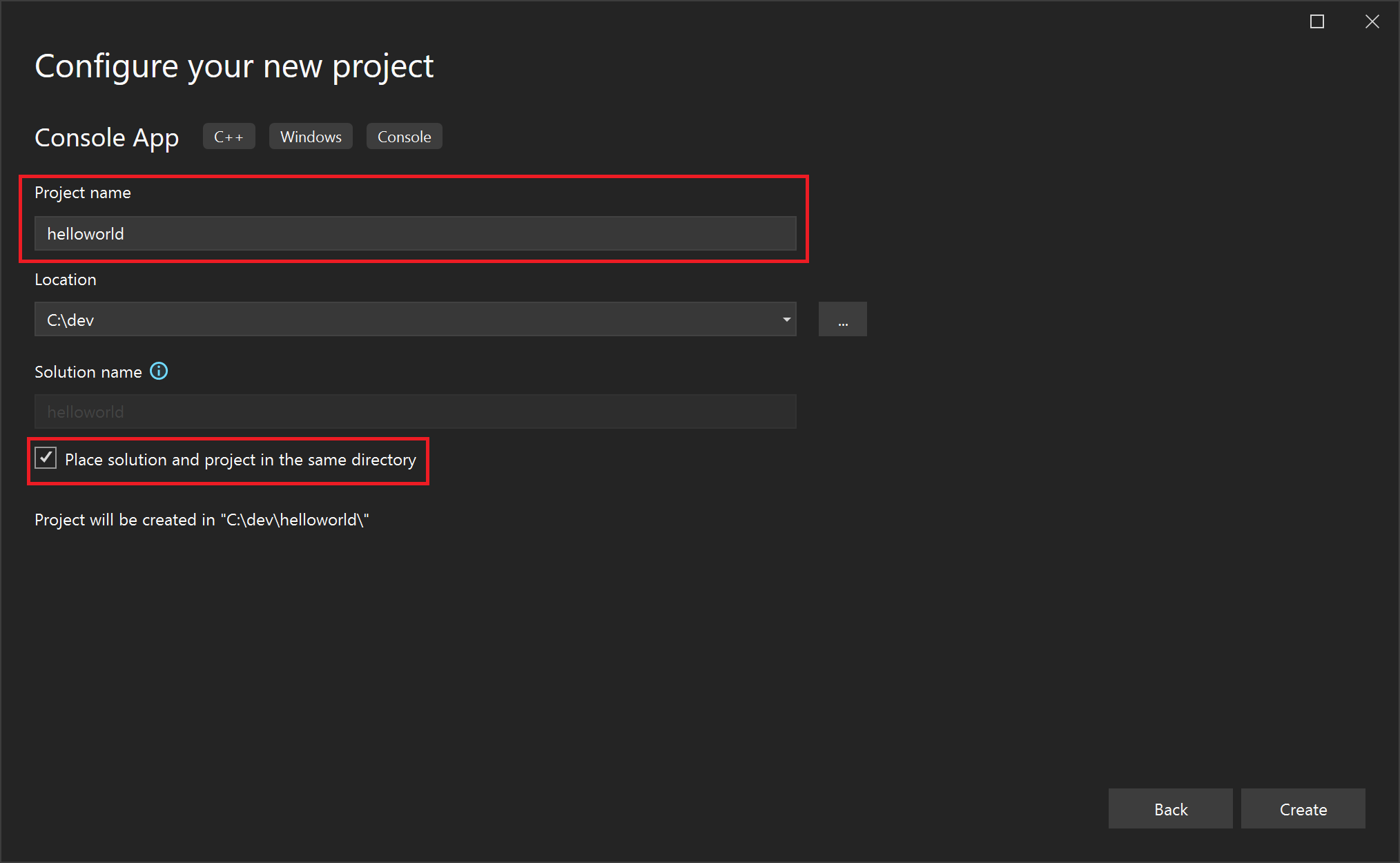
Name your project "helloworld"
-
Check the box for "Place solution and project in the same directory."
-
Click the "Create" button
- Configure the
KMPKG_ROOTenvironment variable.
Setting environment variables in this manner only affects the current terminal session. To make these changes permanent across all sessions, set them through the Windows System Environment Variables panel.
- powershell
- cmd
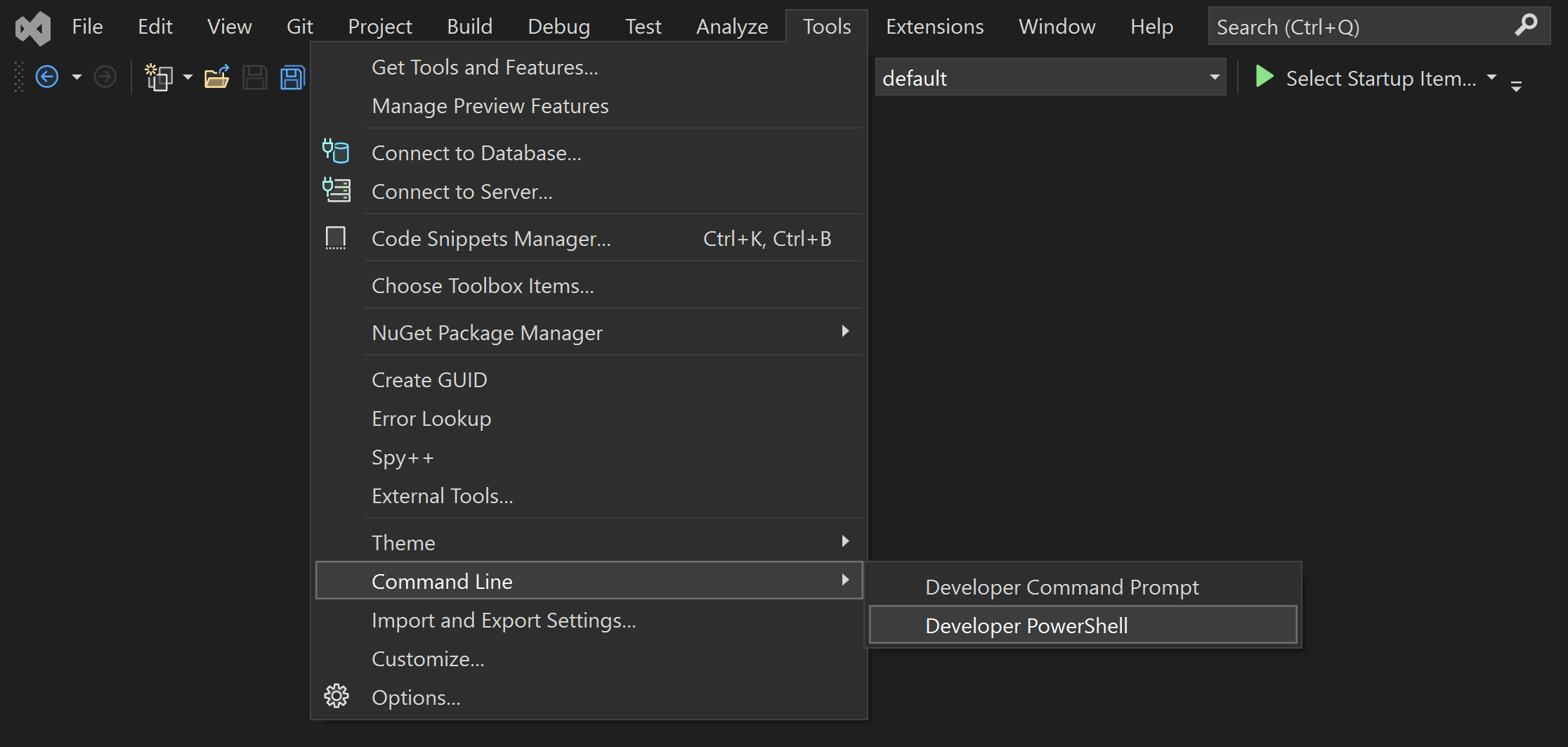
Open the built-in Developer PowerShell window in Visual Studio.
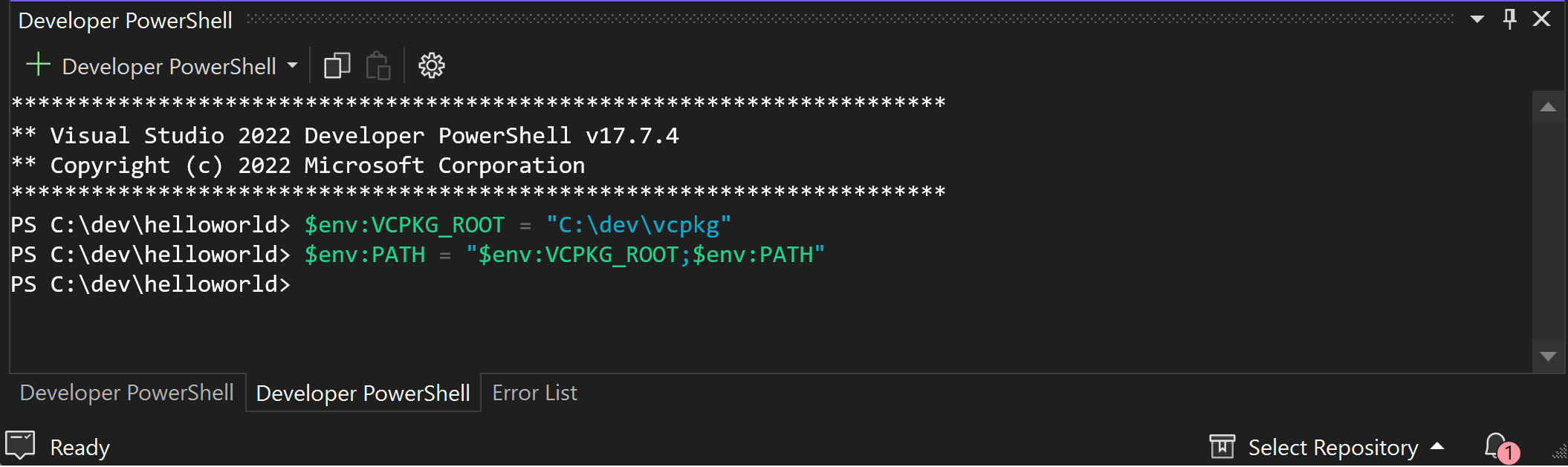
Run the following commands:
$env:KMPKG_ROOT = "C:\path\to\kmpkg"
$env:PATH = "$env:KMPKG_ROOT;$env:PATH"
Open the Developer command prompt in Visual Studio.
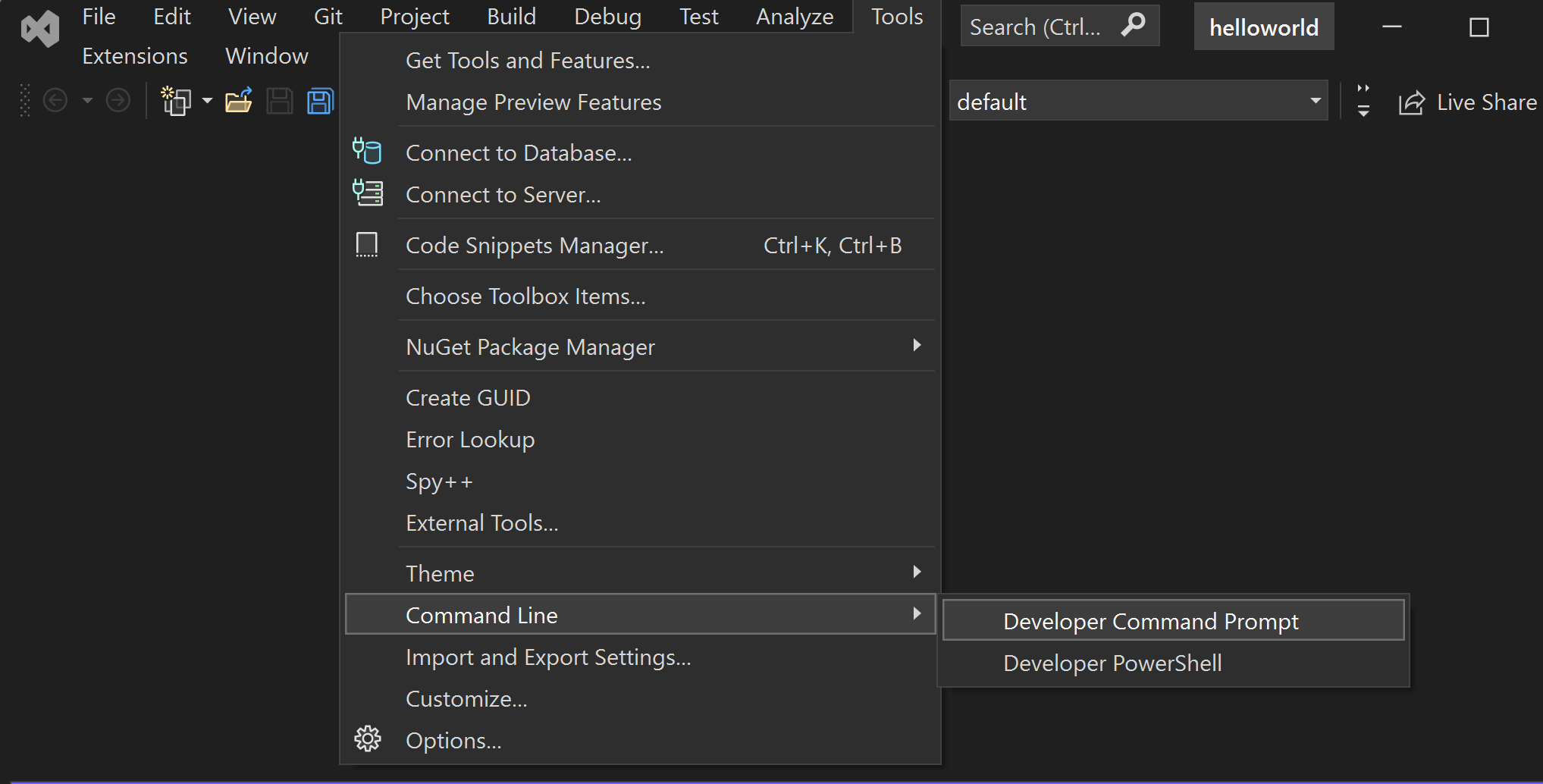
Run the following commands:
set "KMPKG_ROOT=C:\path\to\kmpkg"
set PATH=%KMPKG_ROOT%;%PATH%
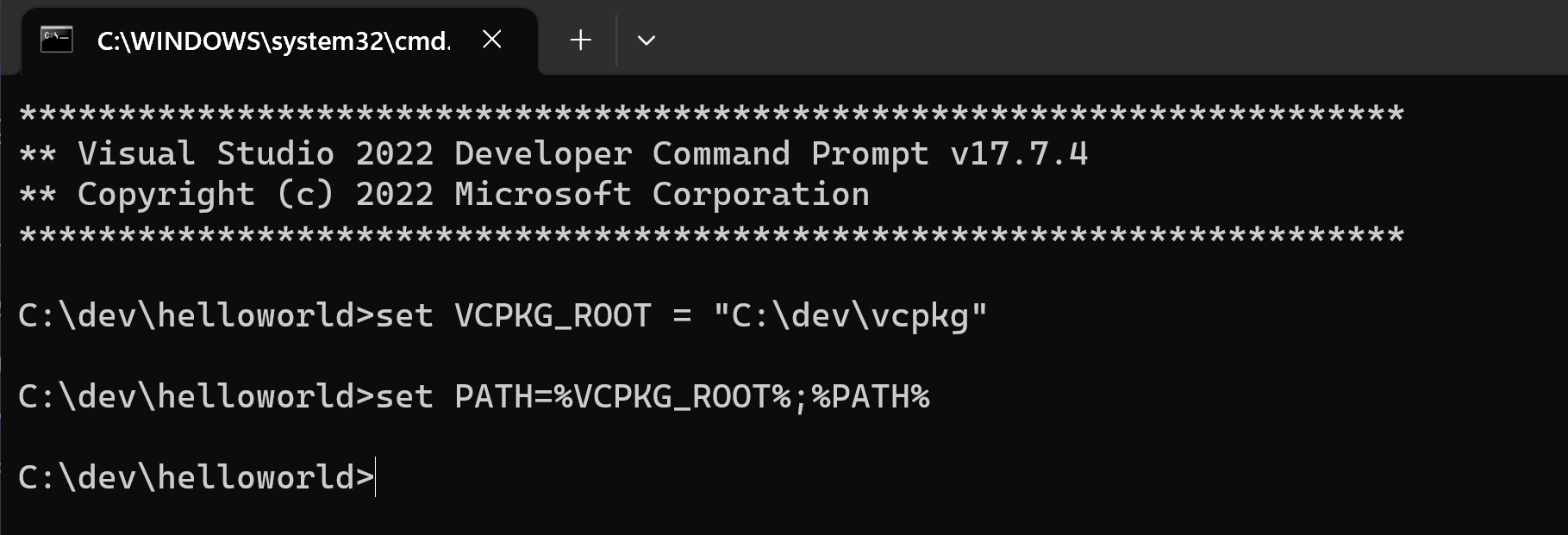
Setting KMPKG_ROOT helps Visual Studio locate your kmpkg instance.
Adding it to PATH ensures you can run kmpkg commands directly from the shell.
-
Generate a manifest file and add dependencies.
Run the following command to create a kmpkg manifest file (
kmpkg.json):kmpkg new --applicationThe
kmpkg newcommand adds akmpkg.jsonfile and akmpkg-configuration.jsonfile in the project's directory.Add the
fmtpackage as a dependency:kmpkg add port fmtYour
kmpkg.jsonshould now contain:{
"dependencies": [
"fmt"
]
}This is your manifest file. kmpkg reads the manifest file to learn what dependencies to install and integrates with MSBuild to provide the dependencies required by your project.
The generated
kmpkg-configuration.jsonfile introduces a baseline that places minimum version constraints on the project's dependencies. Modifying this file is beyond the scope of this tutorial. While not applicable in this tutorial, it's a good practice to keep thekmpkg-configuration.jsonfile under source control to ensure version consistency across different development environments.
3 - Set up the project files
-
Modify the
helloworld.cppfile.Replace the content of
helloworld.cppwith the following code:
#include <fmt/core.h>

int main()
{
    fmt::print("Hello World!\n");
    return 0;
}
This source file includes the <fmt/core.h> header which is part of the
fmt library. The main() function calls fmt::print() to output the
"Hello World!" message to the console.
The code editor may underline the lines referencing
fmtfiles and symbols as errors. You need to build your project once for kmpkg to install the dependencies and make auto-completion tools evaluate the code correctly.
4 - Enable manifest mode
-
Navigate to your Project Properties page.
Using the menu navigation at the top, choose Project > Properties. A new window will open.
-
Navigate to Configuration Properties > kmpkg, and set
Use kmpkg ManifesttoYes.
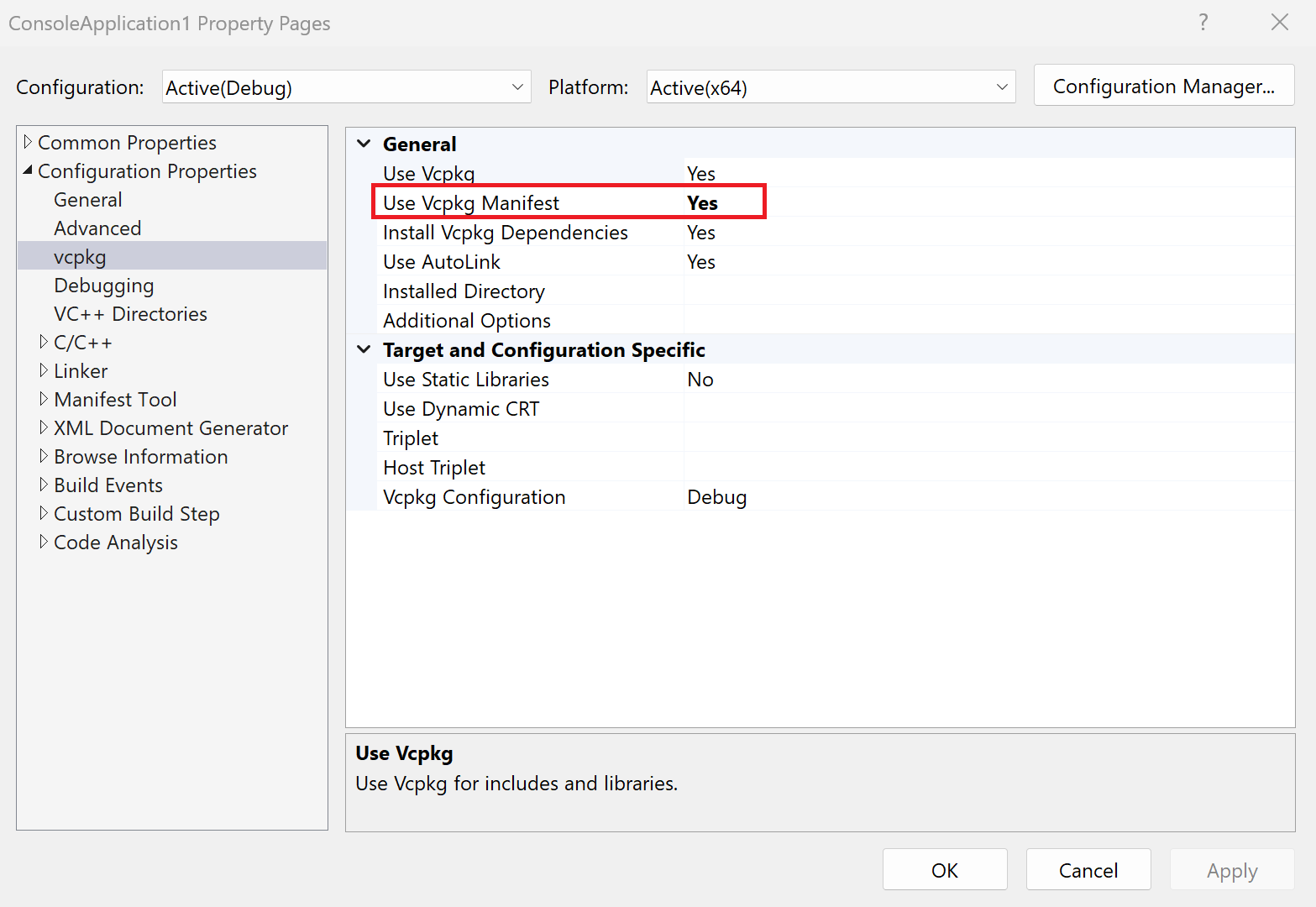
Other settings, such as triplets, are filled in with default values kmpkg detects from your project and will be useful when configuring your project.
5 - Build and run the project
-
Build the project.
Build the project using the
Build > Build Solutionoption from the top menu.If MSBuild detects a
kmpkg.jsonfile and manifests are enabled in your project, MSBuild installs the manifest's dependencies as a pre-build step. Dependencies are installed in akmpkg_installeddirectory in the project's build output directory. Any headers installed by the library can be directly used, and any libraries installed will be automatically linked. -
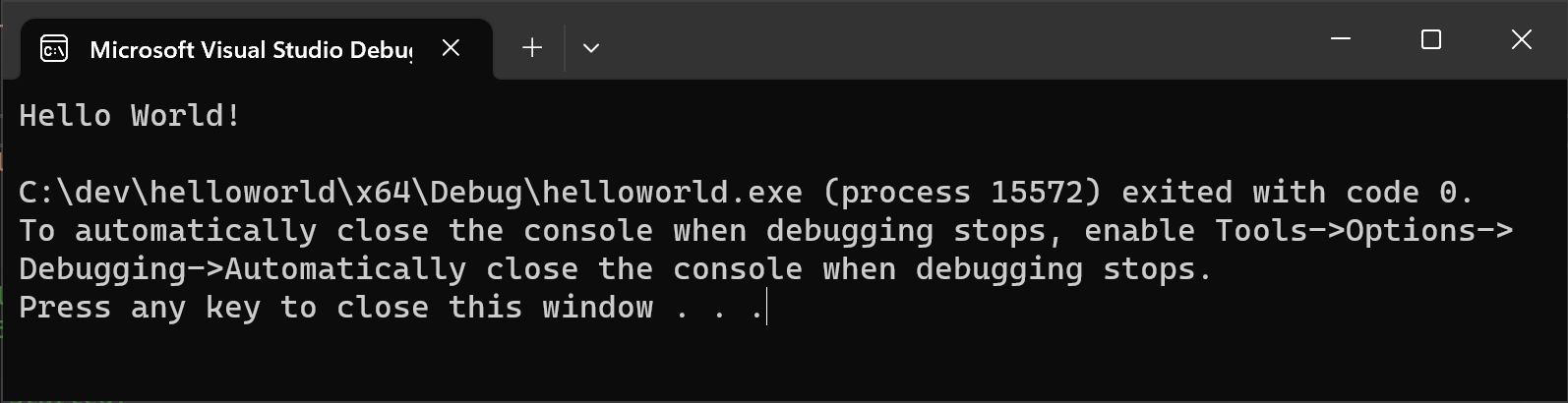
Run the application.
Finally, run the executable:

You should see the output:
Next steps
To learn more about kmpkg.json and kmpkg MSBuild integration, see our reference documentation: